

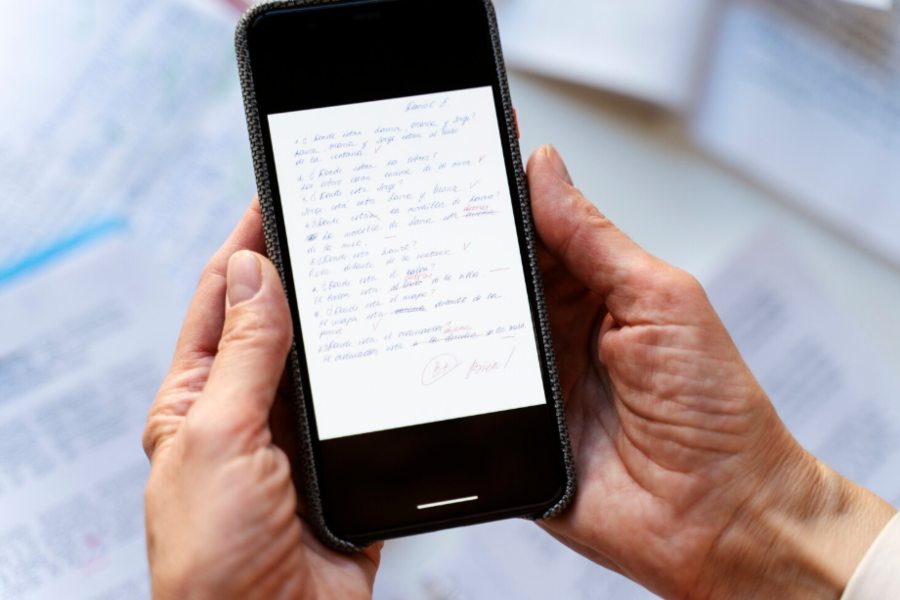
Picture this. You’re on a train or sitting in a coffee shop between meetings, and a client pings you a PDF that needs a quick edit before the end of the day. You open it on your phone, realize you can’t change a single character, and now you’re stuck. Your laptop is at home. You don’t have Adobe installed. And downloading some random app from the App Store that you’ll use once and forget about doesn’t exactly feel like a great idea.
Here’s the part most people don’t realize: you don’t need an app at all. Your phone’s browser is more than enough. There are web-based tools that let you convert PDFs right from your mobile screen: no downloads, no sign-ups, and no storage eaten up by another app you didn’t really want. This guide walks you through exactly how to do it.
Why You Probably Don’t Need Another App on Your Phone
Let’s be real about something. Your phone is already packed. Between messaging apps, email, social media, banking, and whatever else has piled up over the years, the last thing you need is another app sitting in the background draining battery and sending you notifications about premium upgrades you’ll never buy.
Most PDF converter apps follow the same playbook anyway. Free download: basic features work for a day or two, and then suddenly everything useful is locked behind a subscription. You end up paying $8 a month for something you use twice a quarter. That math doesn’t work for anyone.
Browser-based tools skip all of that. You open a URL, upload your file, get the converted version, and close the tab. Nothing installed. Nothing to uninstall later. Nothing asking you to rate it five stars every time you open your phone.
How to Convert a PDF on Your Phone Step by Step
Step 1: Open Your Browser
Safari, Chrome, Firefox, whatever you’ve got. Any modern mobile browser works. You don’t need a specific one, and you don’t need to change any settings.
Step 2: Go to a Web-Based Converter
Navigate to a reliable online converter tool. QuillBot’s PDF to Word Converter works well on mobile because the page is designed to function on smaller screens without everything cramming together or buttons becoming impossible to tap. That’s not a small thing. A lot of converter sites were clearly built for desktop and became a nightmare to navigate on a phone. The ones worth using feel just as smooth on a 6-inch screen as they do on a laptop.
Step 3: Upload Your PDF
Tap the upload button and choose your file. On an iPhone, this pulls up the Files app or your recent downloads. On Android, you’ll see your file manager or Google Drive. If someone emailed you the PDF, you might need to save it to your phone first before uploading, which takes about three seconds. Some tools also let you upload directly from cloud storage like Google Drive or Dropbox, which is handy if you keep your documents there.
Step 4: Convert and Download
Once you upload the file, the tool processes it and gives you a download link. Tap it, and the converted Word doc saves to your phone. The whole thing takes maybe 30 seconds for a standard document. Larger files with lots of images or tables might take a bit longer, but we’re still talking under a minute in most cases.
Step 5: Edit on Your Phone or Send It Along
Now you’ve got an editable Word file on your phone. You can open it in Google Docs, Microsoft Word’s free mobile app, or any other doc editor and make your changes right there. If the edit is small, like fixing a date or swapping out a name, you can handle it on the spot and email the updated file before your coffee gets cold. If it’s a bigger edit that needs a proper keyboard, at least you’ve got the editable version ready to go the moment you sit down at your desk.
When Mobile Conversion Works Great (and When It Doesn’t)
Let’s set fair expectations here. Mobile conversion is perfect for the situations that catch you off guard. Quick contract edits, fixing a typo in a proposal, and updating an invoice before sending it to a client. These are the moments where pulling out your phone and handling it in 60 seconds makes you look responsive instead of making excuses about being away from your computer.
Where it gets tricky is with very large or complex files. A 50-page financial report with embedded charts and multi-layer tables will convert, but editing that kind of document on a phone screen is going to test your patience. For anything over a few pages, you’re better off converting on mobile and saving the actual editing for when you’re at a desk. The conversion itself works fine. It’s the editing experience on a small screen that becomes the bottleneck.
Things to Watch Out For
Not every online converter deserves your trust, especially on mobile where shady sites love to throw pop-ups at you. Stick with established tools that don’t bombard you with ads the second the page loads. If a site asks you to install something before you can convert, close the tab and go somewhere else. A legitimate web-based converter runs entirely in the browser. That’s the whole point.
Also, keep an eye on what happens to your uploaded files. Reputable tools process your document, deliver the output, and delete the upload within a short window. If a site’s privacy policy is vague or nonexistent, that’s a red flag, especially if the document contains sensitive information like contracts, financials, or personal data.
One more practical tip: make sure you’re on a stable connection before uploading. Wi-Fi is ideal, but a solid LTE or 5G signal works too. If you’re on spotty reception and the upload fails halfway through, you’ll just have to start over, which defeats the purpose of doing this quickly.
Your Phone Is Enough
You don’t need a laptop, you don’t need Adobe, and you definitely don’t need to download an app that’ll collect dust after one use. A browser and a reliable converter tool are all it takes to go from a locked PDF to an editable one.
Word doc on your phone in under a minute. Next time a file catches you away from your desk, you’ll know exactly what to do.
Frequently Asked Questions
1. Does converting a PDF on mobile use a lot of data?
Barely. A typical text-heavy PDF is only a few hundred kilobytes to a couple of megabytes. Uploading it and downloading the converted file uses less data than loading most social media feeds. If your file is image-heavy or runs past 20 pages, it’ll be a bit larger, but still nothing that’ll make a dent in your data plan. You’d burn through more data watching a two-minute YouTube video than converting a 10-page document.
2. Can I convert other formats on mobile too, like PowerPoint or Excel?
Some online converters support multiple format conversions, not just PDF to Word. You can often convert PowerPoint to PDF, Excel to PDF, and other combinations depending on the tool. The process is identical. Open the converter in your browser, upload the file, and download the result. Just make sure the specific tool you’re using supports the format pair you need before uploading, because not all of them cover every combination.
3. Will the formatting survive when I convert on mobile vs. desktop?
Yes. The conversion happens on the tool’s server, not on your device, so the results are the same whether you’re uploading from a phone, tablet, or computer. Your device is just the interface for uploading and downloading. The actual processing runs in the cloud, which means a file converted from your phone will look identical to one converted from a desktop. The only difference is screen size when you’re reviewing the output, but the file itself is the same.