

Why Visual Rhythm Matters in Short-Form Videos
Creating engaging short-form videos is about more than having a good idea. On platforms such as TikTok, Instagram Reels, and YouTube Shorts, creators need to capture attention quickly, maintain visual interest, and deliver their message without unnecessary delays. A slow opening, repetitive footage, or an unclear visual sequence can make an otherwise interesting video feel less engaging.
This is where an AI video generator can become a useful part of the creative process. Instead of filming every scene from scratch, creators can use artificial intelligence to generate short clips, animate still images, experiment with camera movements, and develop visual variations for different parts of a video.
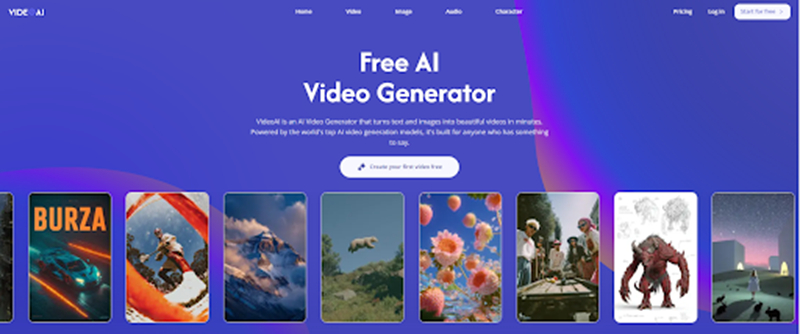
VideoAI is a platform worth exploring for creators who want to experiment with AI-assisted video production. Its potential value lies in helping users develop visual concepts, create supporting footage, and refine the pacing of short-form content.
In this guide, we explore how VideoAI can fit into a short-form production workflow, how AI-generated footage can improve visual storytelling, and what creators should consider before incorporating generated clips into their regular publishing schedule.
What Is VideoAI and How Can It Help Short-Form Creators?
VideoAI is an AI-powered video creation platform designed to help users produce video content with less manual production work. Depending on the available tools and workflow, creators can use text prompts, visual references, and existing footage to develop new video sequences.
For short-form creators, the main opportunity is to reduce the time spent turning an idea into usable visual material.
Traditional video production often involves several steps:
- Developing a creative concept and writing a script.
- Planning shots, camera movements, and transitions.
- Recording footage or sourcing suitable stock videos.
- Editing clips to match the narration and music.
- Creating variations for different platforms or audiences.
An AI Video Generator can support parts of this process by helping creators develop visual assets without recording every shot themselves.
For example, a creator producing a product video might use an original photograph of a handmade item as a starting point, generate a short animated sequence, and incorporate the result into a larger edit. Rather than replacing the entire production process, AI becomes an additional tool for developing and testing creative ideas.
How to Use an AI Video Generator to Create Better Hooks
1. Start With a Clear First-Second Concept
The opening of a short-form video should immediately establish a reason to keep watching. A surprising visual, an unusual camera angle, or a clear demonstration can help introduce the subject before the viewer loses interest.
Instead of starting with a complicated prompt, identify one visual action that communicates the central idea.
For example, a creator making a video about a handmade ceramic cup could experiment with:
- A close-up that gradually reveals the complete design.
- A rotating view that highlights the cup’s texture.
- A quick transition from an unfinished object to the final product.
- A dramatic camera push toward a distinctive detail.
These concepts can be translated into short prompts for an AI video generator. Generate a few variations and compare their opening frames, motion, and clarity.
The objective is not simply to produce a visually attractive clip. It is to find footage that introduces the subject quickly and supports the video’s overall message.
2. Experiment With Camera Movement
Camera movement influences how viewers experience a scene. Even a simple subject can feel more dynamic when the camera approaches, rotates, or reveals it from a different angle.
When creating AI-generated footage, experiment with one movement at a time.
Slow push-in: Gradually brings attention to a specific detail or product feature.
Horizontal reveal: Introduces an object or environment by moving across the frame.
Top-down rotation: Shows the shape, surface, or arrangement of an object from above.
Close-up tracking: Follows a moving subject or highlights a particular action.
A useful workflow is to generate two or three versions of the same scene with different camera directions. Comparing these variations makes it easier to identify which movement supports the intended storytelling.
3. Match the Visual Hook to the Message
A strong opening is most effective when it relates directly to the subject. A dramatic camera movement may attract attention, but it can become distracting if it does not help viewers understand the content.
For educational videos, prioritize visual clarity. For product demonstrations, emphasize the feature being discussed. For storytelling, choose an opening that introduces a question, action, or moment of change.
Use the AI video generator to explore possible openings, then select the footage that communicates the idea most clearly.
Using VideoAI for B-Roll and Visual Storytelling
B-roll is supporting footage that adds context, illustrates an explanation, or creates visual variety. It is especially useful in talking-head videos, tutorials, product reviews, and educational content.
An AI video generator can help creators develop additional footage when recording every supporting shot would require too much time or equipment.
Create Supporting Product Footage
Product videos often benefit from close-ups, different viewing angles, and visual demonstrations.
A creator might use an existing product photograph as a reference and explore animated footage that emphasizes its shape, material, or design. These generated clips can be edited alongside real product demonstrations and original recordings.
For example, a skincare creator could use supporting visual sequences to introduce product textures or illustrate a routine. A technology creator could use generated environmental footage to establish a scene before explaining a device’s features.
When factual product details matter, use authentic footage for anything that could misrepresent the actual product. AI-generated scenes should support the presentation rather than fabricate evidence of performance or appearance.
Add Visual Variety to Talking-Head Videos
Talking-head content can become visually repetitive when the camera remains fixed throughout the entire video.
Supporting clips can introduce visual changes while the creator continues explaining the subject.
Consider using AI-generated footage for:
- Environmental establishing shots.
- Abstract visual metaphors.
- Background atmospheres.
- Illustrative transitions between topics.
- Nonessential close-up details.
The most effective supporting footage has a clear purpose. Every inserted clip should reinforce the narration, establish context, or help transition between ideas.
Build More Interesting Transitions
Transitions help connect separate sections of a video. While simple cuts are often sufficient, certain storytelling formats benefit from visual sequences that establish continuity between scenes.
AI-generated footage can provide additional transition material, such as a gradual change in environment, a camera movement that leads into another shot, or a brief visual reveal.
However, transitions should not become the main attraction. If a transition interrupts the message or makes the sequence harder to follow, a straightforward edit may be more effective.
How to Create Consistent Videos With AI-Generated Clips
One challenge of AI-assisted video production is maintaining a consistent visual identity. Separately generated clips can differ in lighting, color, camera distance, composition, and subject appearance.
This matters particularly for creators producing recurring series, branded content, and multi-part tutorials.
Establish a Repeatable Visual Style
Before generating multiple clips, define a few visual rules.
For example, a creator might choose:
- A consistent color palette.
- Similar lighting and contrast.
- A recurring camera distance.
- A recognizable background or environment.
- A particular visual treatment for product close-ups.
These guidelines give separate generations a shared creative direction.
Keeping prompts organized can also help. Save successful prompts alongside the exported footage and record any important settings or reference images. This creates a practical starting point for future videos.
Change One Variable at a Time
When testing prompts, avoid changing the subject, environment, lighting, camera movement, and visual style simultaneously.
Instead, begin with one basic scene and adjust a single element for each variation.
For example:
Version A: A close-up of a handmade candle with a slow camera push.
Version B: The same candle, setting, and lighting with a horizontal camera movement.
Version C: The same camera movement with a slightly wider composition.
This approach makes it easier to understand which creative decisions produce the desired result and which introduce unwanted differences.
Use Reference Images Carefully
Image references can help communicate a subject’s appearance and provide a starting point for animation.
For a product series, using consistent reference images may help maintain continuity between clips. Nevertheless, reference-based generation does not guarantee perfect consistency, so review the subject’s appearance, proportions, and details before publishing.
For important branded products, verify that generated footage accurately represents the real item.
A Practical Short-Form Video Production Workflow
A repeatable workflow can make AI-assisted video creation easier to manage, especially for creators publishing frequently.
Step 1: Develop a One-Sentence Premise
Start with a simple description of what the video communicates.
For example:
“Show how a handmade wooden desk organizer transforms a cluttered workspace.”
This premise provides a clear direction for the opening hook, supporting visuals, and final edit.
Step 2: Identify the Essential Shots
Break the idea into a small number of visual moments.
For the desk organizer example, the sequence might include:
- A close-up of a cluttered desk.
- A reveal of the organizer.
- A detail shot showing its compartments.
- A final view of the organized workspace.
Decide which shots need authentic footage and which could be supported by AI-generated material.
Step 3: Generate Short Visual Variations
Use focused prompts to create individual shots rather than attempting to generate an entire video in one request.
For the opening, test different compositions or camera movements while keeping the central concept unchanged.
Review each result for subject clarity, motion quality, framing, and relevance to the intended hook.
Step 4: Select and Edit the Strongest Clips
Import the selected footage into a video editor and arrange it around the script, narration, or music.
Remove unnecessary pauses, shorten slow sections, and ensure that every visual change supports the intended pacing.
An AI-generated clip does not automatically improve a video. Its value depends on how effectively it fits into the final sequence.
Step 5: Add Captions and On-Screen Graphics
Keep important text elements in your editing software rather than relying on generated text inside video frames.
Editing tools such as CapCut or Adobe Premiere can be used to add:
- Accurate subtitles.
- Opening hooks.
- Product labels.
- Calls to action.
- Brand elements and visual stickers.
This approach gives creators more control over spelling, timing, contrast, and placement, particularly in vertical videos where platform interface elements may cover parts of the screen.
Step 6: Review the Video on a Mobile Screen
Before publishing, watch the finished video in a vertical mobile format.
Check whether the opening communicates the subject quickly, the captions remain readable, and the generated footage looks natural within the edit.
Also review the video for visual inconsistencies, unexpected motion, distorted details, and abrupt transitions.
Best Practices for AI Video Generation in TikTok, Reels, and Shorts
Different short-form formats may require different creative decisions, but several production principles apply across platforms.
Design for Vertical Video
If your primary publishing format is vertical, plan the composition accordingly.
Keep the main subject clearly visible and avoid placing important details too close to the edges. Leave suitable space for captions and platform interface elements.
When generating footage, specify a vertical composition where supported and check the final crop before editing the complete sequence.
Keep Individual Shots Focused
Short-form videos benefit from clear visual communication.
A prompt describing one action, one subject, and one camera movement is generally easier to evaluate than a long prompt containing several unrelated events.
For example, instead of requesting a complete product advertisement, begin with a specific shot:
“A close-up of a wooden desk organizer on a clean workspace, with a slow camera push revealing the carved details and soft natural lighting.”
The prompt establishes the subject, action, camera movement, and visual atmosphere without introducing unnecessary complexity.
Prioritize Motion Quality
Generated footage should be reviewed for more than its appearance in a single frame.
Pay attention to:
- Unnatural object movement.
- Changes in subject proportions.
- Flickering or inconsistent details.
- Unexpected camera movement.
- Distorted hands or interactions.
- Abrupt changes in lighting or composition.
If a clip contains visible problems, try a simpler prompt, a different reference image, or another variation.
Make Every Generated Clip Serve a Purpose
Not every scene needs AI-generated footage.
A useful production strategy is to reserve generated material for shots that are difficult, expensive, or unnecessary to film independently. Keep essential demonstrations, personal storytelling, and important factual footage authentic whenever accuracy and trust depend on it.
This balance helps preserve the creator’s identity while expanding the range of visual material available for editing.
Limitations to Consider When Using an AI Video Generator
AI-assisted production can reduce some creative and logistical barriers, but it introduces its own challenges.
Inconsistent results: Different generations may interpret the same prompt differently. A creator should expect to review and potentially regenerate footage.
Limited control: Precise movement, timing, subject continuity, and object details may require experimentation and additional editing.
Unreliable generated text: Text rendered directly into AI-generated footage may contain spelling errors or distorted characters. Important messaging is easier to manage in a dedicated editing application.
Overproduction: Generating many clips can consume time without improving the final result. A smaller collection of relevant shots may be more useful than a large folder of disconnected visuals.
Authenticity concerns: AI-generated footage can create unrealistic impressions if it is presented as documentary evidence, a real product demonstration, or an actual event. Clearly distinguish illustrative material from authentic recordings when that distinction matters.
Creators should also review the platform’s current pricing, generation limits, export options, commercial-use terms, and content policies before relying on it for regular production. Features and account restrictions can change, so verify the current terms directly with VideoAI.
Short-Form Creator’s AI Video Production Checklist
Use this checklist before publishing an AI-assisted video.
- Test the opening: Create a few variations of the first shot and compare their clarity, composition, and motion.
- Keep the concept focused: Give each generated clip one primary visual purpose.
- Choose the right footage: Use AI for supporting visuals where it adds value, and retain authentic footage for essential demonstrations.
- Maintain visual consistency: Reuse suitable references and establish recurring rules for lighting, color, and composition.
- Check the motion: Review the entire clip for unnatural movement, flickering, and unexpected changes.
- Edit captions separately: Add subtitles, text hooks, and graphics in your editing software.
- Review vertical framing: Confirm that the subject and important details remain visible on a mobile screen.
- Save successful prompts: Keep useful prompts, references, and exported clips organized for future projects.
- Check publishing requirements: Confirm platform policies, usage rights, and any relevant disclosure expectations.
Frequently Asked Questions
What is an AI video generator?
An AI video generator is software that uses artificial intelligence to create or modify video content. Depending on the platform, users may be able to generate clips from text prompts, animate images, transform existing footage, or create variations of visual scenes.
How can short-form creators use VideoAI?
Short-form creators can explore VideoAI for AI-assisted visual production, including concept development, supporting footage, and animated visual ideas. The most practical workflow is to use generated clips as individual elements within a larger editing process and review the available features before choosing a production method.
Can an AI video generator help create TikTok and Instagram Reels content?
Yes. AI-generated clips can be incorporated into vertical videos for TikTok and Instagram Reels, provided the output is suitable for the intended format. Creators should check aspect ratio, framing, motion quality, captions, and platform-specific requirements before publishing.
Should creators use AI-generated footage for an entire video?
That depends on the content and the level of accuracy or authenticity required. AI-generated footage can be useful for creative storytelling and illustrative scenes, while original recordings may be more appropriate for personal experiences, tutorials, interviews, and real product demonstrations.
How can creators make AI-generated videos look more consistent?
Creators can establish a repeatable visual style, use suitable reference images, reuse successful prompt structures, and keep camera movement and lighting consistent. Reviewing clips together during editing is also important because individual generations may differ even when they use similar prompts.
Why should captions be added during editing?
Adding captions in a dedicated editor provides greater control over spelling, readability, timing, contrast, and positioning. It also makes it easier to adjust captions for different languages, video formats, and platform interface layouts.
Conclusion: Turn AI Video Generation Into a Repeatable Creative Process
For short-form creators, the value of an AI video generator is not simply the ability to produce more footage. It is the opportunity to experiment with visual ideas, develop supporting shots, and refine the pacing of a video without recording every possible variation.
VideoAI can be explored as part of this process, particularly when creators need additional visual material for hooks, transitions, product storytelling, and B-roll. Its practical usefulness will depend on the quality and consistency of the output, the features available to the user, and how well the generated footage fits the final edit.
The most sustainable approach is to start with a clear premise, generate focused variations, retain the footage that supports the message, and build a repeatable workflow around the results. By combining AI-assisted generation with deliberate editing and authentic storytelling, creators can develop a more flexible short-form production process without allowing visual effects to replace the substance of their content.