

Working with plain text is often convenient because it is easy to edit and copy.
However, plain text isn’t ideal for sharing, as it may render differently depending on the device, app, or font available. So, many people prefer converting it to PDF, which preserves the exact layout, and there’re no broken alignments or missing fonts.
There are several ways to convert plain text into PDF online. We’ll show you two of the easiest ones in this blog.
Methods to Convert Plain Text into PDF Online
The following are methods anyone can easily follow to turn their plain text into a PDF online.
Method 1 – Using an Online Text to PDF Converter
This can be considered a simple and quick method. You just need to follow some simple steps.
- Open your web browser and search for a text-to-PDF converter.
- Select a PDF converter from the search results. However, you should opt for the one that gives reliable results. For demonstration, we selected Imagetotext.info’s Text to PDF Converter, which performed consistently during our testing. Also, it doesn’t require you to sign in or pay anything.
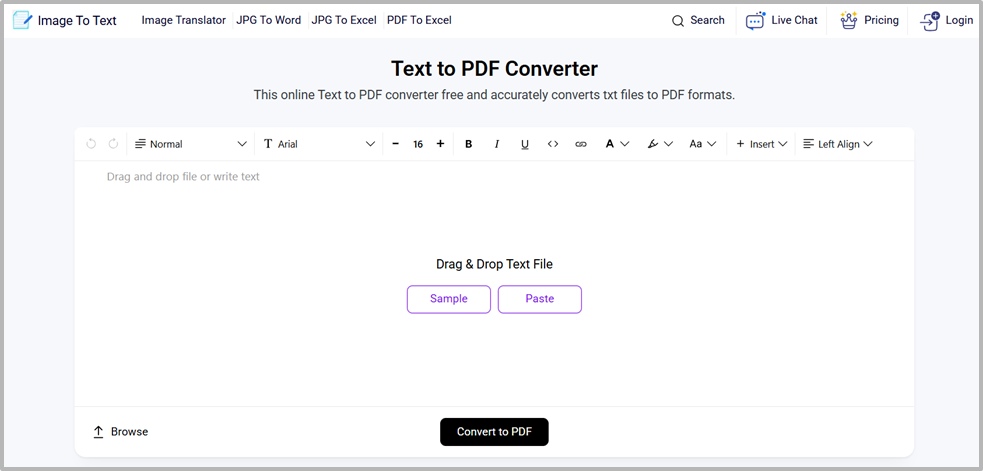
- Once you have selected your text-to-PDF converter, open it, navigate to its input box, and paste your text.
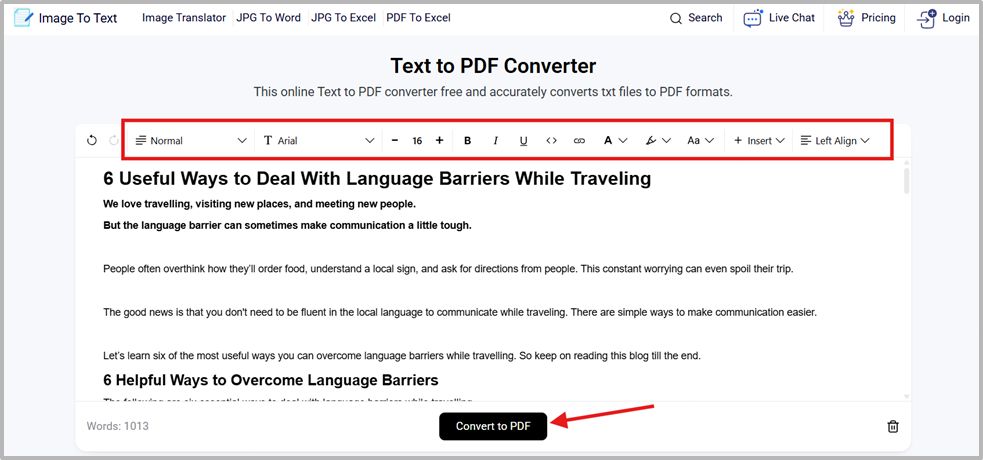
- You can then format your text to make it look presentable. Add headings, change fonts, and adjust text alignment. The tool we used offers almost all basic formatting options to make your text look clean. Once you adjust the text, click on the “Convert to PDF” button as shown in the image below.
- After that, your file will start downloading automatically.
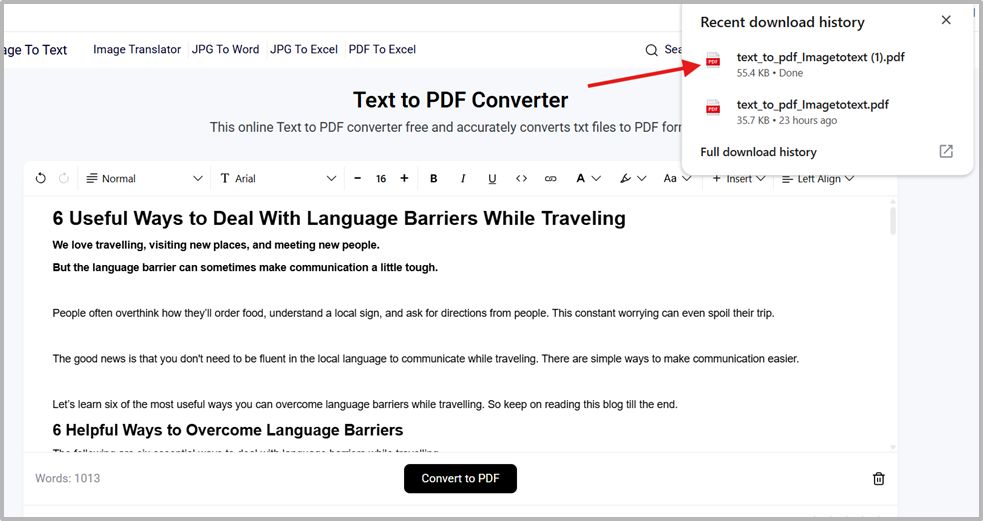
This is how you can use an online text-to-PDF converter to turn your text into a PDF. This is quite an easy method. Also, you can find many such tools for free online.
Method 2 – Use Google Docs
This is another method for converting text into a PDF. This method is convenient for users who already have a Google account and regularly use Google Docs. To perform this conversion, you need to follow the following steps.
- Open your web browser, search for Google Docs, and open it.
- Paste your text into it. Adjust the formatting.
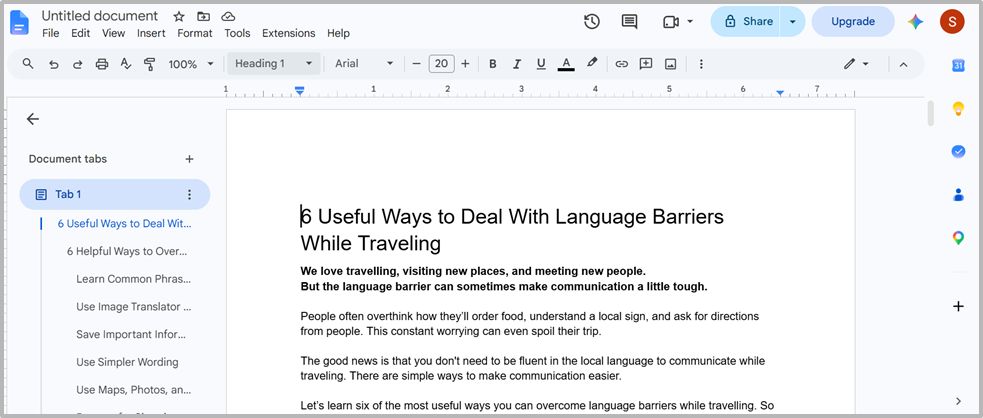
- Once you have adjusted the text and formatting, navigate to the top and click on “File” just under the file name. Hover your mouse over the download button and select PDF Document from the drop-down menu as shown in the screenshot below.

- After clicking on the PDF document, your file will be downloaded in the PDF format.
This is how you can use Google Docs to convert your text into a PDF. Using Google Docs requires a Google account, so you will need to sign in before converting your text.
Tips for Creating a Better PDF from Plain Text
The following are some useful tips to get a better output when turning your plain text into a PDF.
- Before you convert your text into a PDF, spend some time editing or formatting your text. Take a quick look at the content. Fix any obvious spelling or grammatical errors before creating the final file.
- Organized text is more convenient for readers. Break it into clear sections to make it presentable. Many text-to-PDF converters offer formatting features to help you organize your text. Add headings and paragraph breaks where appropriate.
- Check the final PDF before sharing. Don’t just assume your downloaded PDF is perfect. Open it and look at the pages before you send it to someone else. If you find any errors, you can repeat the conversion process, as it is simple and easy.
These are some helpful points to avoid any inconsistencies you might face during or after your text-to-PDF conversion.
Summing Up
Plain text is not the best for sharing. Also, it doesn’t always keep the formatting intact. Users often prefer converting their plain text into PDF when sharing or keeping a record of something.
To convert your plain text into PDF online, you can use a specialized text-to-PDF converter. Many are available online for free. You can select one that gives reliable results.
You can also use Google Docs to convert your text into PDF after signing in. Both of these methods work fine. You can choose any method and follow the steps mentioned above to get your plain text converted into a PDF file.