

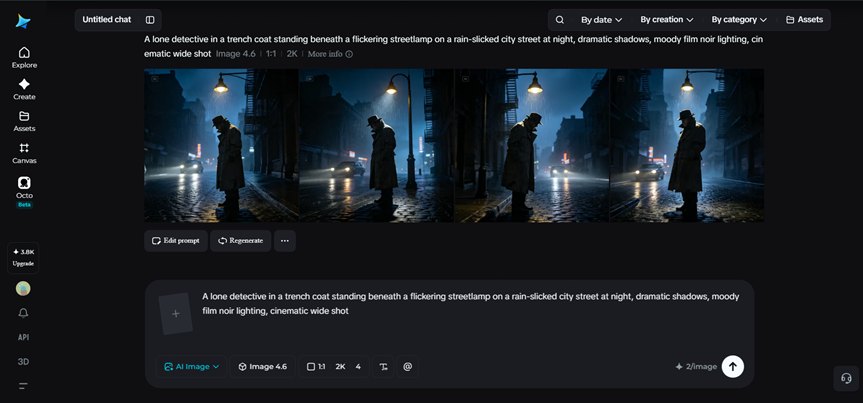
Ever watched a movie still and wondered how a single frame can carry so much mood — the lighting, the framing, the tension in the air — all without a single word of dialogue? That kind of visual storytelling used to require a full crew, expensive equipment, and hours on set. Now, an AI image generator can get you remarkably close to that same cinematic feel, straight from a well-crafted prompt.
Dreamina, powered by its most advanced image generation model, Seedream 5.0 Pro, has made cinematic scene creation accessible to anyone with an idea and a bit of patience. From moody film noir shots to sweeping fantasy landscapes, you can build scenes that feel like they were pulled straight from a director’s storyboard. Here’s how to actually pull it off.
What actually makes an image feel “cinematic”
Cinematic doesn’t just mean “high quality” — it’s a specific visual language borrowed from filmmaking. A handful of elements consistently show up in scenes that feel like movie stills:
- Strong directional lighting that creates depth and contrast
- Deliberate framing, like rule-of-thirds or dramatic close-ups
- A limited, intentional color palette instead of flat, evenly lit tones
- A sense of narrative — like something just happened or is about to
Once you start thinking in these terms, your prompts naturally shift from “a photo of X” to something with genuine visual weight.
Setting the mood with lighting
Lighting is arguably the single biggest factor separating a flat image from a cinematic one. Backlighting can create silhouettes and mystery, harsh side lighting adds tension, and soft golden-hour light feels warm and nostalgic. When writing your prompt, naming the light source and its quality — “flickering neon glow,” “harsh overhead spotlight,” “soft diffused window light” — gives the model something concrete to render instead of guessing at a generic daytime scene.
Framing your shot like a director
Camera angle and composition do a lot of heavy lifting too. A low-angle shot can make a subject feel powerful or imposing, while a wide establishing shot sets scale and place before you even see a face. Consider specifying:
- Shot type — close-up, medium shot, wide establishing shot
- Camera angle — low angle, eye level, bird’s-eye view
- Depth of field — sharp foreground with a blurred background, or everything in crisp focus
These small additions push a generation from “generic” toward “intentionally composed.”
Your 3-step scene-building process with Dreamina
Once you understand the visual language, actually generating the scene is refreshingly simple.
Step 1: Write a text prompt and/or add a reference image
Head to Dreamina and start writing a detailed text prompt featuring a person dressed appropriately for the scene or genre you’re going for. If you have a reference image capturing a similar mood, lighting style, or setting, upload it to help guide the generation further.
A detailed prompt might read: A lone detective in a weathered trench coat and fedora, standing beneath a flickering streetlamp on a rain-slicked city street at night, dramatic shadows cast across his face, moody film noir lighting, cinematic wide shot with shallow depth of field.
Notice how it covers subject, setting, lighting, and camera style all at once.
Step 2: Adjust parameters and generate
Before generating, dial in your settings. Select Image 5.0 Pro, powered by Seedream 5.0 Pro, as your model, then choose your aspect ratio, image size, and resolution, going with a wider aspect ratio if you’re aiming for a true widescreen film look, and 2K resolution if you want maximum detail in shadows and textures. Once your settings are locked in, click Dreamina’s generate icon to bring your scene to life.
Step 3: Customize and download
After your scene generates, refine it using Dreamina’s AI customization tools — inpaint to touch up small details, expand to widen the frame for a more sweeping composition, remove to clear away distracting elements, and retouch to sharpen lighting and texture. Once it looks right, click the Download icon to save your finished cinematic scene.
Color grading language that changes everything
Filmmakers use color intentionally, and your prompts can borrow that same thinking. Warm amber and orange tones read as nostalgic or intimate, cool blues and teals feel isolating or tense, and desaturated, muted palettes often signal drama or realism. Dropping phrases like “warm golden color grade” or “cold desaturated tones” into your prompt nudges the entire mood of the image in a specific direction, much like a colorist would in post-production.
Why Seedream 5.0 Pro handles cinematic detail so well
A big part of what makes this level of scene-building possible is Seedream 5.0 Pro itself. Its deep reasoning generation analyzes your prompt’s intent, visual relationships, and creative direction before producing an image, which matters enormously for cinematic work where lighting, composition, and mood all need to align correctly.
Its pinpoint precision editing, with point selection, lasso tools, sketch guidance, and regional controls, means you can adjust a single shadow or light source without disturbing the rest of the frame.
The multi-layer visual control also separates subjects, backgrounds, and effects into independent components, giving you the freedom to swap a backdrop or adjust atmospheric elements while keeping your subject exactly as composed. And because it produces strong 2K output, fine details like fog, rain, and light diffusion hold up even under close inspection.
Building a sense of story into a single frame
The most memorable cinematic images imply a story beyond the frame itself. A half-open door, an object dropped mid-motion, a figure glancing over their shoulder — these small narrative cues make a viewer’s mind fill in the “before” and “after.” When prompting, consider adding a subtle action or detail that hints at a larger moment, rather than a purely static pose.
Final thoughts
Cinematic scene creation isn’t reserved for filmmakers with full production budgets anymore — it just takes an understanding of lighting, framing, and color, paired with the right AI image generator.
With Dreamina and its advanced Seedream 5.0 Pro model, you have the precision, reasoning power, and customization tools to turn a simple idea into a frame that feels pulled straight from a movie. Start with the mood you want to create, and let the details build the story around it.