


Three photos had been sitting in my folder for weeks, bothering me every time I scrolled past them.
One was slightly soft, the kind of shot that looks fine until you zoom in. One was an old print scan, grainy in that specific way only decades-old paper gets grainy. Another one was a screenshot pulled off Facebook, compressed twice over, muddy in the shadows.
I’d tried fixing photos before.
Every attempt ended the same way. A heavy download here, a subscription wall there, an app that wanted to teach me how to crop instead of actually enhancing anything.
This time I wanted something that just ran in the browser. No install bar. No app eating up space on my laptop.
Wink kept showing up in searches as the simpler option.
So I ran all three images through it and paid attention to what came back.
First Impressions of Wink Image Enhancer
Before uploading anything, the Image Enhancer page itself is worth a look.
The card shows a before/after preview right on the thumbnail. I knew roughly what to expect before I even clicked in. Small thing. But it builds a bit of trust before you’ve uploaded anything.
- Upload window’s front and center too. No settings menu to dig through. No sliders to guess at before you’ve added a file.
- The page states plainly what it does: AI Video/Image Quality Repair, no vague buzzwords stacked on top of each other.
- There’s a credit counter visible in the corner the whole time. I could see exactly what an edit would cost.
On a lighter note, the interface was a little overwhelming at first. A dozen-plus tool cards packed onto one screen. Enhancer sits right at the top of the list, though, so once I knew what I was looking for, it was easy enough to land on.
Test 1. The Wedding Photo
The first test image was a close two-shot under an outdoor pergola, soft light, a touch of that hazy look wide apertures give you. Nothing dramatically wrong, just soft enough to flatten detail on a closer look.
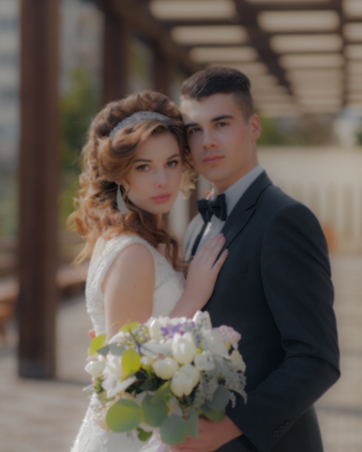
I uploaded it and picked Portrait mode instead of the general HD setting, since it’s a close two-person shot and the tool offers that option specifically. In under 30 seconds, a preview loaded.
The bride’s hair was the first thing worth checking. Loose curls, backlit by the sun through the pergola beams. That’s usually the first casualty in a soft shot, since strands blur into one warm mass.
After the fix, the curls separated again, each lock distinct instead of one general shape. The bouquet held up the same way.
Before, it read as a bright, slightly mushy cluster. After, the tulips kept their edges, and the smaller flowers stopped melting into the greenery around them.
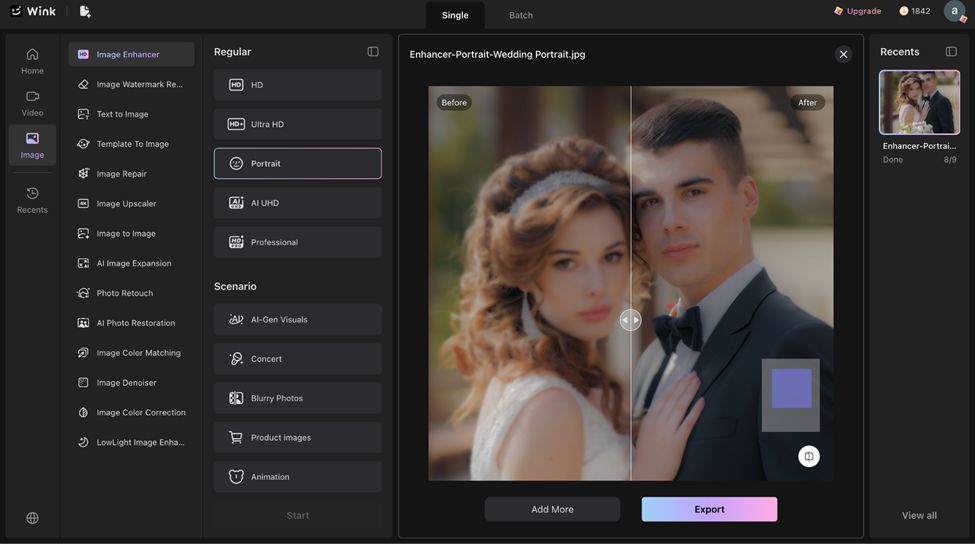
The best part? Skin tone stayed natural too. Both faces had that soft-focus glow wedding photographers go for on purpose, and the enhancer didn’t push past it into something harsh. Texture came back without looking sharpened or artificial.
What didn’t resolve: the deep background past the pergola stayed soft. That’s depth of field, not a flaw, and no enhancer sharpens what the lens never focused on to begin with.
Test Two: An Old Studio Portrait
The second photo was older, a formal studio headshot from what looked like decades back, the kind of print that’s been sitting in a frame or a drawer since it was taken.
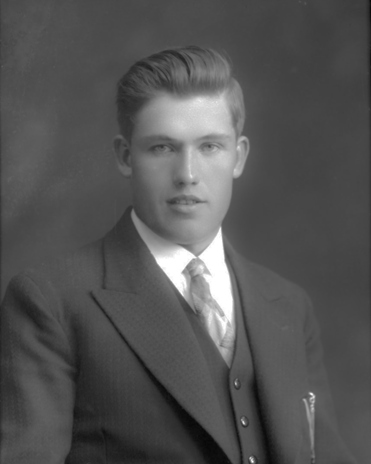
The print had that grainy haze old photos pick up over time.
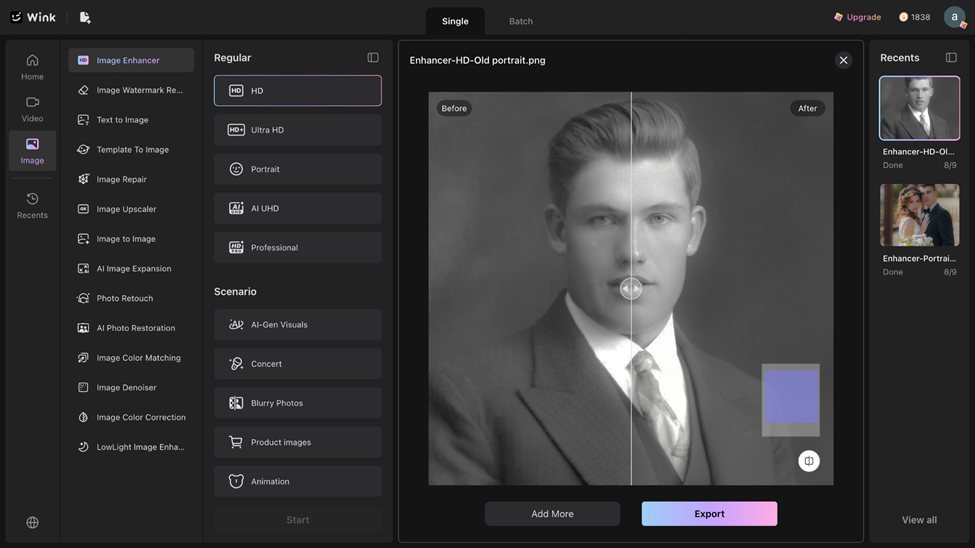
I picked the general HD setting, since it’s a straightforward headshot that lacked clarity.
Grain was the first thing to shift. The haze sitting over the face and backdrop cleared into real skin texture.
The slicked, side-parted hair went from a flat dark mass to something with actual strands and shine.
The suit held up well too.
For instance, the jacket’s tweed pattern, barely there before, returned with visible texture. The tie’s diamond weave, previously just a gray blur, showed its pattern again, and the vest buttons went from soft dots to distinct shapes.
Where it struggled: the mottled spots and scratches on the backdrop didn’t smooth out. If anything, the tool made them a touch more visible. That tracks with how these tools work generally. Enhancement sharpens what’s already there. It doesn’t erase damage sitting on the print itself.
Even with that limit, the result held up well.
Test Three: A Compressed Social Media Photo
The third photo was an old phone selfie, a guy and his golden retriever making faces at the camera against a stone column backdrop.
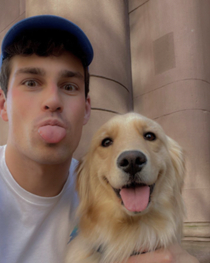
Grainy, a little soft, fine on a screen but not something I could print.
I needed it printed at 8×10, and the file was nowhere near enough resolution for that. So I ran it through the enhancer first, then Wink’s upscaler, set to 4K output for enough headroom.
The grain cleared into real texture on both faces. The dog’s fur held up especially well, individual strands instead of one blonde blur, and the nose kept its texture instead of flattening out.
Skin tone evened out without losing warmth, and the guy still looked like “himself”, no airbrushed overcorrection.
The stone column sharpened up too; grooves and texture came back instead of a flat beige wash.
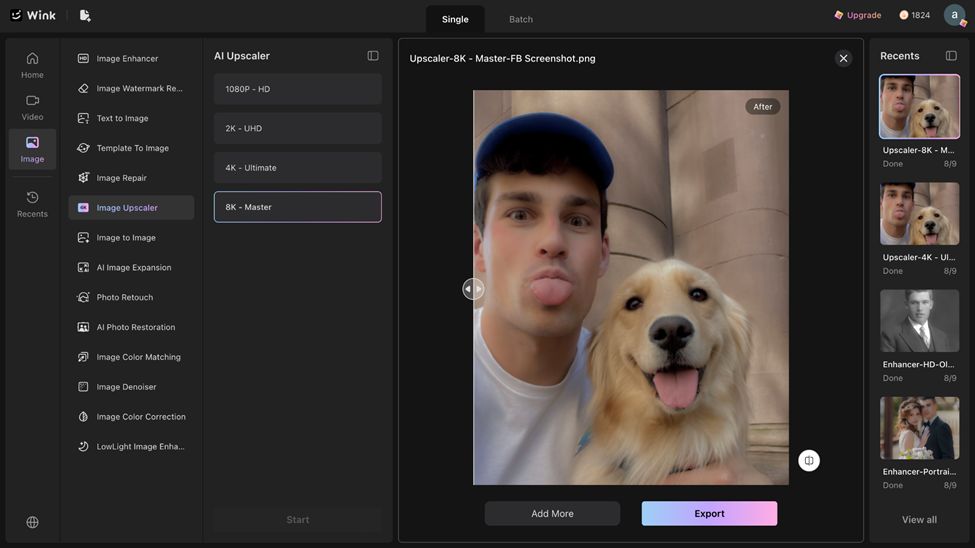
What didn’t fully resolve: a faint smudge showed up along one edge of the dog’s fur, from over-smoothing in the shadows during the combined pass. Otherwise, the file came back print-ready at full size, not just screen-ready.
Free vs. Paid: What You’re Actually Working With
Free gets you a starting batch of credits and the basic models, enough to test both the enhancer and the upscaler honestly.
The catch? There is a watermark on every export. Plus, the better models stay locked.
The paid plan runs on a monthly credit system. Standard gives 1,000 credits a month. Pro gives 4,000. Unused credits expire after 31 days.
My take?. Free isn’t a crippled demo. In fact, it held up fine for actual edits on both tools. The watermark is the only dealbreaker, not the credit count. For a one-off fix, free works.
But for someone like me, running a small online business and creating content regularly, I’d go for a paid plan. The credit allowance fits a real workload, and for what it delivers, the price holds up against what I’d pay elsewhere.The Verdict: 4.5/5
So, what’s my final take?
My experience with Wink has been better than a lot of tools I’ve tried that “overpromise” and over-enhance: plastic skin, melted edges, results that look “AI-fixed” instead of just fixed. What I got back across all three tests looked like real photos.
One limitation worth repeating: Motion blur stays blurry; missing resolution stays missing unless you upscale separately. That’s a boundary, not really a flaw, but worth knowing before you expect a miracle.
Would I reach for Wink the next time an old photo needs saving? Yes, without much hesitation.
Broadly, it’s a solid tool, careful with detail, honest in its limits, and genuinely useful across different problems rather than just one narrow use case.
Where does it land on my list?
Right near the top of the image tools I’ve actually used and would use again, not because it’s flawless, but because it does what it claims without the usual overcorrection that makes AI edits obvious.